Friday, May 20, 2011

Moving SQL Server System Databases to New Drives

It may become necessary to move an already installed SQL Server from one file storage location to another. It is necessary to move the system and other databases. In this case, we are moving the databases from the M:\ drive LUN to three drives, separated by function. This equates to:

  • M:\sqlserver\backup to B:\
  • M:\sqlserver\data to D:\
  • M:\sqlserver\log to L:\

While this is entirely possible, it is necessary to follow a few steps below to cleanly move the SQL Server instance to have storage in a different location. This example uses SQL Server 2008R2, so be sure to take note of the version when clicking through the registry.


  • Start the SQL Server Configuration Manager located in the programs section , under the version of SQL Server.
  • Shutdown SQL Server Instance.
  • In Configuration Tools for SQL Server Instance, put this in for startup parameters:

-dD:\MSSQL10_50.MSSQLSERVER\MSSQL\DATA\master.mdf;

-eD:\MSSQL10_50.MSSQLSERVER\MSSQL\Log\ERRORLOG;

-lL:\MSSQL10_50.MSSQLSERVER\MSSQL\DATA\mastlog.ldf

  • In the registry:

o HKEY_LOCAL_MACHINE\SOFTWARE\Microsoft\Microsoft SQL Server\MSSQL10_50.MSSQLSERVER\MSSQLServer

Set default paths to:

B:\, L:\, D:\

o HKEY_LOCAL_MACHINE\SOFTWARE\Microsoft\Microsoft SQL Server\MSSQL10_50.MSSQLSERVER\Replication

Set Working Directory to:

D:\MSSQL10_50.MSSQLSERVER\MSSQL\repldata

o Change default location in registry for Data Root:

HKEY_LOCAL_MACHINE/SOFTWARE/Microsoft/Microsoft SQL Server/100/MSSQL10_50.MSSQLSERVER/Setup/

Set SQLDataRoot to:

D:\MSSQL10_50.MSSQLSERVER\MSSQL

Set FullTextDefaultPath to:

D:\MSSQL10_50.MSSQLSERVER\MSSQL\FTData

  • Change default location for SQL Agent error file:

HKEY_LOCAL_MACHINE\SOFTWARE\Microsoft\Microsoft SQL Server\MSSQL10_50.MSSQLSERVER\SQLServerAgent/

Set ErrorLogFile:

M:\sqlserver\data\MSSQL10_50.MSSQLSERVER\MSSQL\Log\SQLAGENT.OUT

To

D:\ MSSQL10_50.MSSQLSERVER\MSSQL\Log\SQLAGENT.OUT

  • Update Dump Directory to :

D:\MSSQL10_50.MSSQLSERVER\MSSQL

  • Check all Directories in the SQL Configuration manager. As an example, Dump Directory should be set to: D:\MSSQL10_50.MSSQLSERVER\MSSQL\LOG\
  • Start upSQL Server Instance
  • Move Other System Databases:

USE master;

GO

--test change startup script in SQL Config MGR to point to new database/location.

SELECT name, physical_name AS CurrentLocation, state_desc

FROM sys.master_files

WHERE database_id = DB_ID('master');

GO

--MOVE SYSTEM DBs

--MOVE MODEL

USE master;

GO

SELECT name, physical_name AS CurrentLocation, state_desc

FROM sys.master_files

WHERE database_id = DB_ID(N'model');

ALTER DATABASE model MODIFY FILE ( NAME = modeldev, FILENAME = 'D:\MSSQL10_50.MSSQLSERVER\MSSQL\DATA\model.mdf' )

ALTER DATABASE model MODIFY FILE ( NAME = modellog , FILENAME = 'D:\MSSQL10_50.MSSQLSERVER\MSSQL\DATA\modellog.ldf' )

USE master;

GO

--MOVE MSDB

SELECT name, physical_name AS CurrentLocation, state_desc

FROM sys.master_files

WHERE database_id = DB_ID(N'msdb');

ALTER DATABASE msdb MODIFY FILE ( NAME = MSDBData , FILENAME = 'D:\MSSQL10_50.MSSQLSERVER\MSSQL\DATA\MSDBData.mdf' )

ALTER DATABASE msdb MODIFY FILE ( NAME = MSDBLog , FILENAME = 'D:\MSSQL10_50.MSSQLSERVER\MSSQL\DATA\MSDBLog.ldf' )

--MOVE TEMPDB

SELECT name, physical_name AS CurrentLocation

FROM sys.master_files

WHERE database_id = DB_ID(N'tempdb');

GO

USE master;

GO

ALTER DATABASE tempdb

MODIFY FILE (NAME = tempdev, FILENAME = 'D:\tempdb.mdf');

GO

ALTER DATABASE tempdb

MODIFY FILE (NAME = templog, FILENAME = 'D:\templog.ldf');

GO

  • Restart SQL Server Instance!
  • Check locations

--Check

SELECT name, physical_name AS CurrentLocation, state_desc

FROM sys.master_files

WHERE database_id = DB_ID('master');

GO

SELECT name, physical_name AS CurrentLocation, state_desc

FROM sys.master_files

WHERE database_id = DB_ID(N'model');

SELECT name, physical_name AS CurrentLocation, state_desc

FROM sys.master_files

WHERE database_id = DB_ID(N'msdb');

SELECT name, physical_name AS CurrentLocation

FROM sys.master_files

WHERE database_id = DB_ID(N'tempdb');

GO

  • Update Backups/Maintenance Jobs…they all point to the old location.
  • Remaining Databases, such as the Report Server databases, can be detached from the old location, copied to new location and attached.

Friday, April 22, 2011

Moving a SQL Server Database with SSIS's Transfer SQL Server Objects Task

On a recent client project, I was asked to move a backup file of a SQL Server 2008 database to another database. On the surface, that is about as simple of a task a SQL Server DBA can be asked to do. There were ten databases. No big deal I thought.

The databases were all for websites and were to be moved from one hosting server to another. The hosts will remain nameless to protect the innocent!

On the destination server, the issue became evident very soon. I created the blank database and I uploaded the .bak file and tried to restore. No dice, it can only restore its own backups, when a database is backed up using the web tool. I then tried creating the blank database then going in through SSMS. This was possible using the connection parameters. I figured I would outsmart the system by restoring the backup file with a replace. It said I had no rights to do so.

I was stuck with no answer. I decided to see if I could import tables somehow or doing some other task. I then though I would try SSIS (SQL Server Integration Services), where I hit pay dirt! The data was more important than the actual database information, so that is what I concentrated on.

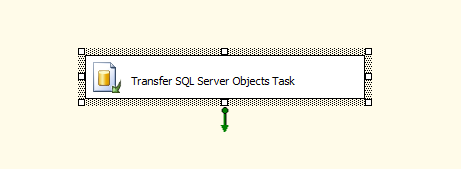
SSIS offers a control flow item called “Transfer SQL Server Objects Task.” The obvious question is why not use a “Transfer Database Task”? Simple, the database task is good, but requires destination file source which I did not have. The “Transfer SQL Server Objects Task” was perfect.

First, you choose the source and destination connections. Next, choose the following options to move up the database contents.

I cleared out the connection information, but this is no simpler than any other SQL connection. You can choose more items than my example, but if all you need is the data transferred, this should do it.

So in summary, this task will help you move databases when you do not have the rights to move the data files (attach database) or restore (restore database).

Saturday, March 12, 2011

SQL Server Restore Issue

Cannot open backup device 'C:\PATH\*.BAK'.

Operating system error 5(error not found).
RESTORE HEADERONLY is terminating abnormally. (Microsoft SQL Server, Error: 3201)

I added “NETWORK SERVICE” to the file root with the following permissions and the resore worked fine.


Friday, March 4, 2011

Extracting Text from Access Fields into New Fields

Extracting Text from Access Fields into New Fields

All too often, people will put multiple data sets into one field in a table. This could hinder querying or reporting on the data or if you were to convert databases down the road.

I encountered data like this in Access and needed to extract it:

A1234567 -> Okay!

A1234567/B1234567

and even:

A1234567/B1234567/C1234567

What is the formula to extract this?

We want to break this into three fields in an Access Query.

To grab the first set regardless of how many entries:

Field1: IIf(Mid([FIELD],9,1)='/',Left([FIELD],8),[FIELD])

To extract the second field:

Field2: IIf(Mid([FIELD],9,1)='/' And Mid([FIELD],18,1)='/',Mid([FIELD],10,8),IIf(Mid([FIELD],9,1)='/' And Mid([FIELD],18,1)<>'/',Right([FIELD],8)," "))

Finally, the third field:

Field3: IIf(Mid([FIELD],9,1)='/' And Mid([FIELD],18,1)='/',Right([FIELD],8)," ")

So that was the easy one. Why? This was easy because all the data was the same length. What would you do about cases where you encounter variable data?

CompanyA

CompanyA/CorpB

CorpB/CompanyA

What is the formula to extract this?

Again, we want to break this into two fields in an Access Query.

To grab the first set regardless of how many entries:

Field1: IIf(([FIELD]) Like "*/*",Left([FIELD],InStr(1,[FIELD],"/")-1),[FIELD])

For the second field:

Field2: IIf(([FIELD]) Like "*/*",Right(Trim([FIELD]),Len(Trim([FIELD]))-InStr(1,[FIELD],"/")),"")

If you were converting from Access to SQL Server, for example, I suggest doing the work before converting. Access offers good querying tools and it is a good idea to take advantage of them. Don’t carry forward the mistakes of the past if you don’t have to!

Thursday, January 27, 2011

SSRS E-Mail Subscription Setup

One of the best parts of a report repository like SQL Server Reporting Services or Business Objects Enterprise is the ability of the system to push out reports to users. One of the most popular ways is a subscription through the e-mail server. However, undoubtedly convenient for the users, the administrator can sometimes have a difficult time getting it setup. This was a case during a recent setup of a SSRS environment where the task was to setup e-mail.
On the SSRS server, I was using a service account in the local domain and had setup the SMTP server based off how I had Business Objects setup. By the way, what you put in for the sender address does not seem to matter and can be what your users want to see.

After everything was setup and I tried a test subscription, I got an error message in the status: “Failure sending mail: The report server has encountered a configuration error. Mail will not be resent.”


Without any detail in the above message, I went to the log file located on the RS server. You can find it at: C:\Program Files\Microsoft SQL Server\(RS Version).(Instance)\Reporting Services\LogFiles.

The meaningful message I got out of this was:
library!WindowsService_8!7c0!01/21/2011-15:00:03:: e ERROR: Throwing Microsoft.ReportingServices.Diagnostics.Utilities.ServerConfigurationErrorException: AuthzInitializeContextFromSid: Win32 error: 5; possible reason - service account doesn't have rights to check domain user SIDs., Microsoft.ReportingServices.Diagnostics.Utilities.ServerConfigurationErrorException: The report server has encountered a configuration error. ;

The common solution to this issue seems to be adding the service account to Windows Authorization Access Group (http://support.microsoft.com/Default.aspx?kbid=842423).